{source}
<?php  require_once JPATH_SITE.'/TTcustom/TT_contentparser.php';\(parameters = array("topicname" => "05electricitynmagnetism_18DC", "modelname" => "ejss_model_CircuitryAtHomeFrem");echo generateSimHTML(\)parameters, "EJSS");
?>
{/source}
Sample Learning Goals
Briefing Document: "Circuitry At Home JavaScript Simulation Applet HTML5"
{source}<iframe style="border-radius:12px" src="https://open.spotify.com/embed/episode/5CnISB5OSZ22ZMsMMK5qTu?utm_source=generator" width="100%" height="352" frameBorder="0" allowfullscreen="" allow="autoplay; clipboard-write; encrypted-media; fullscreen; picture-in-picture" loading="lazy"></iframe>{/source}
1. Overview
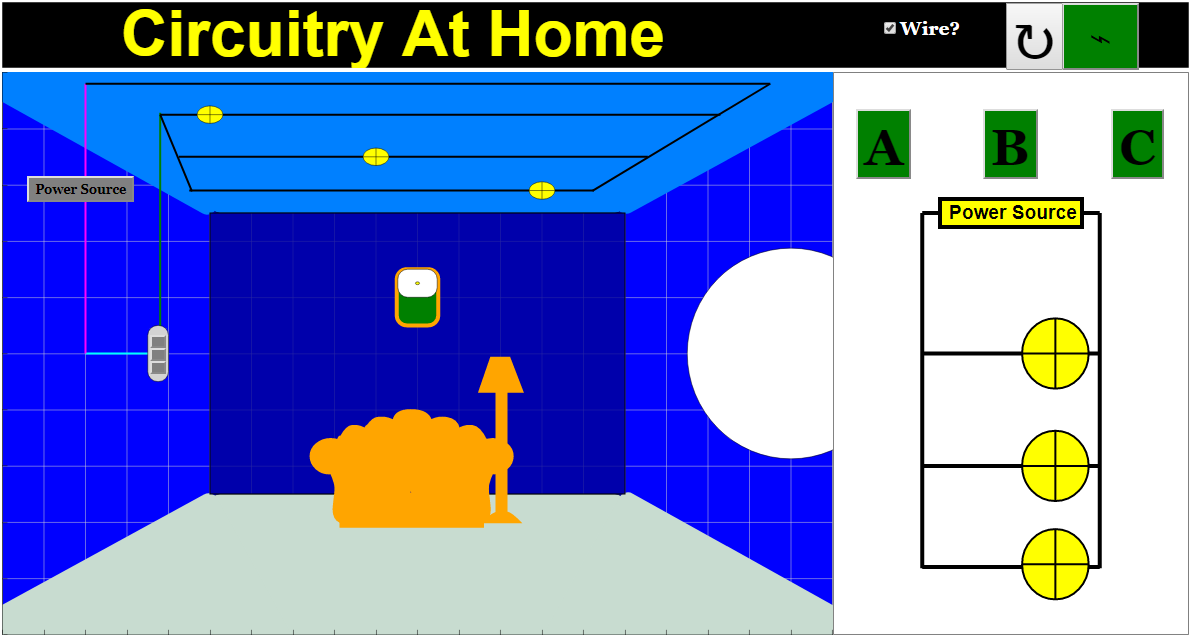
This document reviews the "Circuitry At Home JavaScript Simulation Applet HTML5," a resource hosted by Open Educational Resources / Open Source Physics @ Singapore. This interactive simulation is designed to help learners understand the relationship between real-world electrical circuits (like those found in a home) and their corresponding schematic diagrams. It allows users to manipulate switches and power sources and observe the resulting changes in both a "world view" and a "diagram view" of the circuit.
2. Main Themes and Key Features
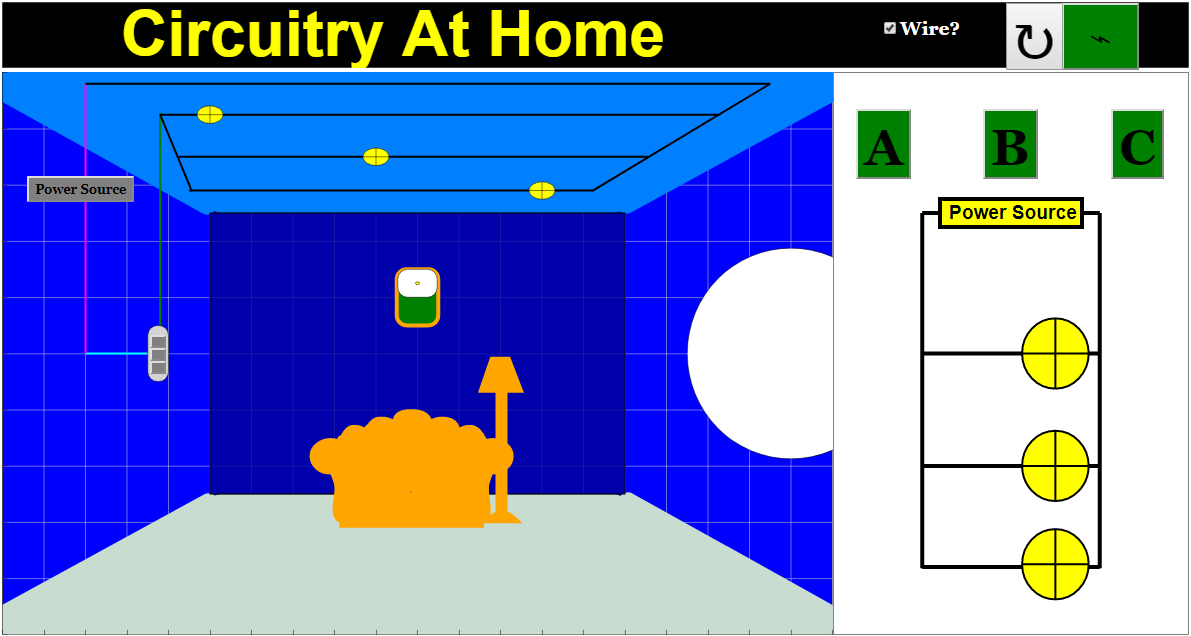
- Visual Comparison: The core concept is the direct comparison of a physical electrical circuit with its abstract representation in a schematic diagram. This helps bridge the gap between the concrete and abstract, aiding in understanding how circuits function. The simulation shows both a diagram view and a world view.
- Interactive Controls: The applet features interactive switches and power buttons, allowing users to experiment with circuit states.
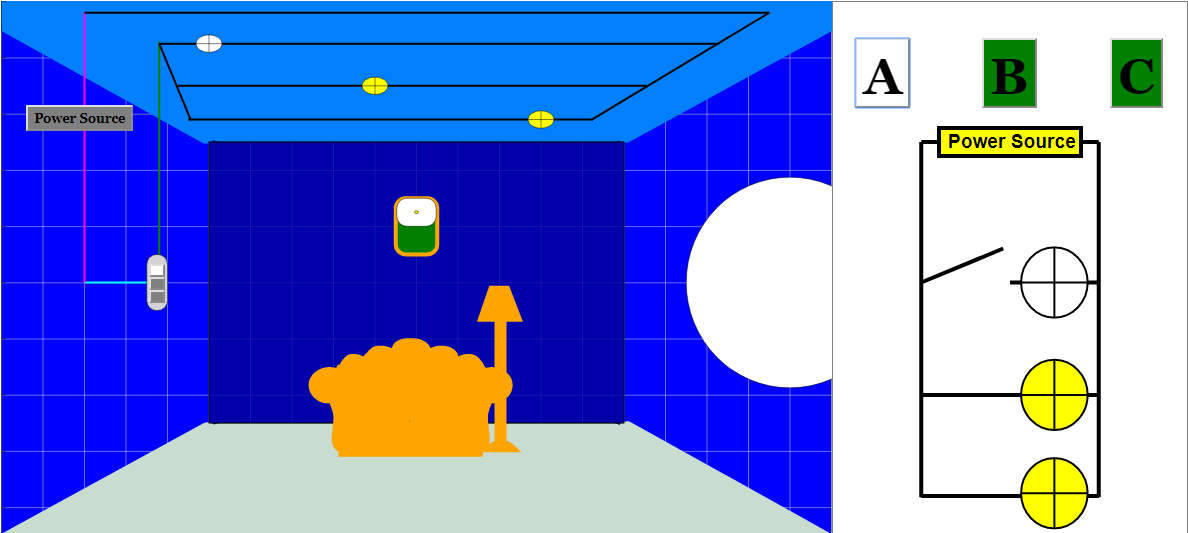
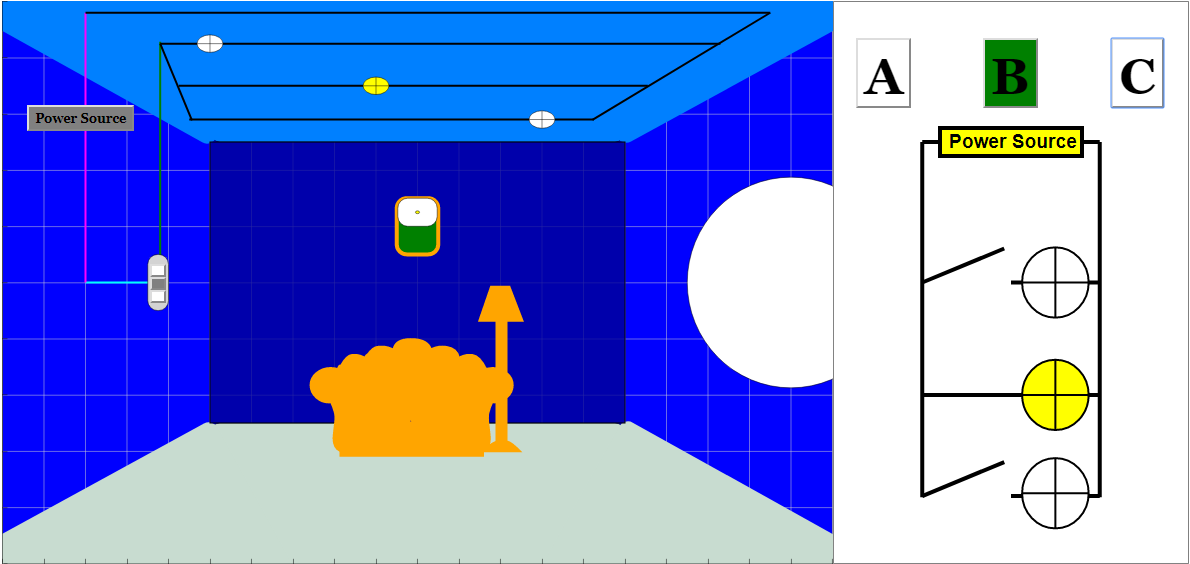
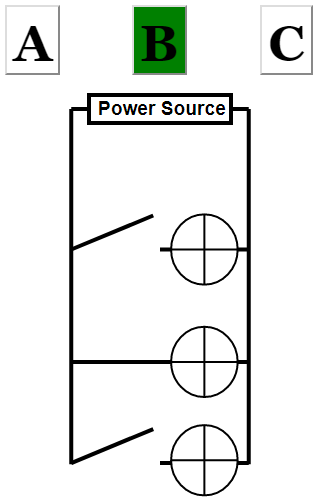
- Switches: Users can toggle switches in both views, observing how this affects the flow of electricity (represented by lights turning on/off). The applet states, "White Buttons represents the switch is opened, while green (diagram)/ grey (world) represents a closed switch. Note that the switches in both world and diagram views are interchangeable."
- Power Buttons: The simulation allows the user to activate or deactivate the power source, showing that even closed switches will not allow the current to flow without power. The simulation states, "Notice how the bulbs doesn't light up even with the switches closed."
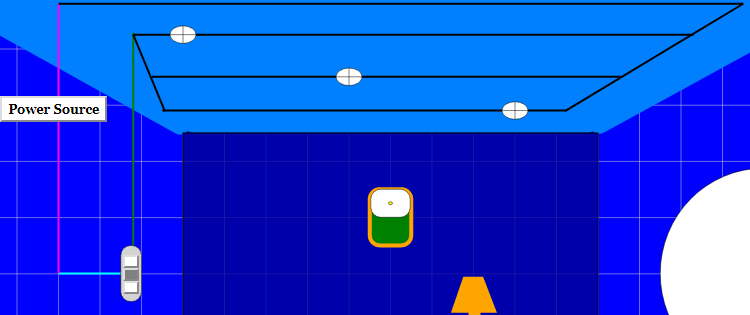
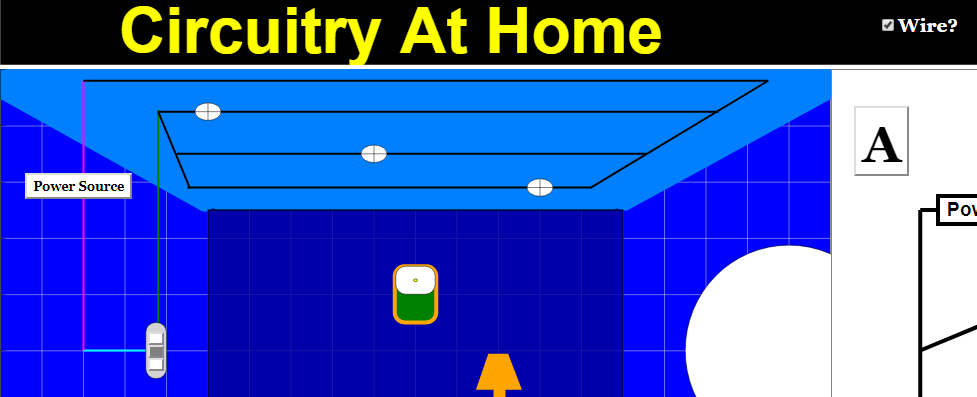
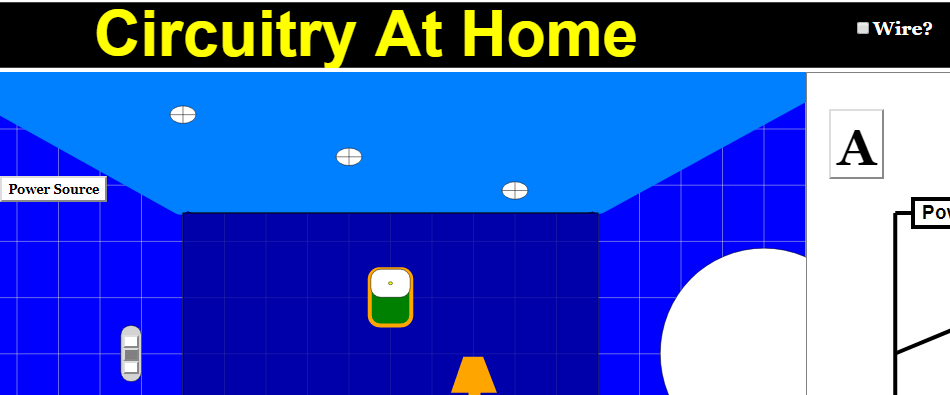
- Wire Visibility Toggle: The simulation includes an option to toggle the visibility of wires in the "world view." This can help users focus on the essential connections in the circuit. The applet states "Notice how the wires in the World View disappeared."
- Reset Functionality: A "Reset Button" returns the simulation to its default state.
- Educational Focus: The resource is aimed at comparing the similarity between circuits in the home and in a diagram, using the simulation to illustrate basic concepts of how switches work, and the difference between a powered and unpowered circuit. It can be seen as an alternative to or supplement to a physical, hands-on activity that would require equipment.
- Accessibility: The simulation is embedded in an iframe on the website, indicating it is designed to be integrated into other web pages, possibly for use in online learning platforms or digital textbooks.
3. Target Audience
The resource is primarily designed for students learning about basic electricity and circuits, and likely targeted towards a primary/secondary/introductory level, due to the simple circuits being shown in the example. It also includes the "For Teachers" section suggesting it has a pedagogical focus.
4. Sample Learning Goals
While specific learning goals are not detailed, the simulation is clearly aimed at helping users to:
- Recognize and differentiate between open and closed switches
- Understand the necessity of a power source for a functional circuit
- Relate a circuit's physical layout to its schematic diagram
- Understand the concept of a circuit and its elements
- Visually relate the switch states to the flow of electricity
5. Pedagogical Approach
The instructions are step-by-step and designed to encourage active learning and experimentation. By interacting with the controls and observing the results, learners can develop a hands-on understanding of electrical circuits. The simulation allows the user to see how the concepts relate to real-world applications.
6. Related Resources
The webpage contains an extensive list of other interactive resources, indicating the Open Educational Resources / Open Source Physics @ Singapore platform is a valuable hub for STEM education. Many of the other resources cover other topics in physics such as mechanics, waves, magnetism, light, and more. This suggests a cohesive collection of learning tools.
7. Technical Details
- The simulation is built using HTML5 and JavaScript, making it accessible in modern web browsers without the need for plugins.
- The page shows an iframe with the source: https://iwant2study.org/lookangejss/05electricitynmagnetism_18DC/ejss_model_CircuitryAtHomeFrem/CircuitryAtHomeFrem_Simulation.xhtml
8. Key Quotes
- "This Simulation is designed to compare the similarity between the circuits at home and in a diagram."
- "White Buttons represents the switch is opened, while green (diagram)/ grey (world) represents a closed switch."
- "Notice how the bulbs doesn't light up even with the switches closed."
- "Notice how the wires in the World View disappeared."
9. Conclusion
The "Circuitry At Home JavaScript Simulation Applet HTML5" is a well-designed, interactive learning tool that effectively demonstrates the basic principles of electrical circuits. Its dual-view design and interactive features make it a valuable resource for both classroom and individual learning settings. The simulation is designed to make abstract concepts concrete, and promotes active experimentation through direct manipulation of the variables.
Circuitry At Home Simulation Study Guide
Quiz
- What is the primary purpose of the Circuitry At Home simulation?
- How do the switches in the diagram view and the world view relate to each other?
- Describe the visual difference between an open switch and a closed switch in the diagram view of the simulation.
- Explain what happens when the power button is clicked in the simulation.
- Even with switches closed, why might the bulbs not light up in the simulation?
- What effect does toggling the "Wires?" checkbox have on the world view of the simulation?
- What does clicking the "Reset Button" do to the state of the simulation?
- What is the format of the simulation, and what type of code was used to create it?
- Based on the list of other resources, what are some of the main topics that OER/OSP@Singapore covers?
- According to the bottom of the page, what is the licensing agreement for the simulation?
Quiz Answer Key
- The primary purpose of the simulation is to allow the user to compare the similarity between circuits in a home setting and their corresponding diagrammatic representation.
- The switches in both the diagram view and the world view are interconnected and interchangeable, meaning that toggling a switch in one view simultaneously changes its state in the other.
- In the diagram view, an open switch is represented by a white button, while a closed switch is represented by a green button.
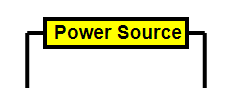
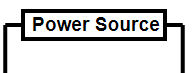
- Clicking the power button toggles the power source on or off, changing the button from white to green/grey and vice versa. Additionally, it changes the color of the power source on the diagram.
- The bulbs will not light up if the power source is off, even if the switches are closed, indicating that a power source is required to complete the circuit.
- Toggling the "Wires?" checkbox hides or reveals the wires in the world view, allowing users to focus on different aspects of the simulation.
- Clicking the Reset Button will reset the entire simulation back to its original, default state, setting all switches, power settings, and views to their initial configurations.
- The simulation is a JavaScript HTML5 applet and is designed for interactive learning.
- Based on the list of other resources, OER/OSP@Singapore covers topics including mechanics, electromagnetism, waves, mathematics, and educational technology, often using simulations.
- The simulation content is licensed under Creative Commons Attribution-Share Alike 4.0 Singapore License, with specific terms for commercial use of the EasyJavaScriptSimulations library.
Essay Questions
- Discuss the pedagogical value of using interactive simulations like the "Circuitry At Home" applet in physics education, focusing on how it enhances student understanding compared to traditional teaching methods.
- Analyze the design choices in the "Circuitry At Home" simulation, such as the dual view system, the power button functionality, and the wire toggle, and how these contribute to the overall learning experience.
- Compare the “Circuitry at Home” simulation to another resource listed on the OER site and explore how the two simulations could be used to create a cohesive lesson plan.
- How does the "Circuitry At Home" simulation address common misconceptions students might have about electric circuits, and what specific features make it effective in doing so?
- Considering the simulation's design and stated learning goals, how can instructors effectively integrate it into their curriculum to maximize its impact on student learning and engagement with the concepts of circuitry?
Glossary of Key Terms
- JavaScript HTML5 Applet: A type of interactive program that is designed to run in a web browser and is built with JavaScript and HTML5 technologies.
- Circuit: A closed loop pathway that allows an electrical current to flow.
- Diagram View: A view in the simulation that shows an abstract or schematic representation of the circuit.
- World View: A view in the simulation that displays a more realistic or physical depiction of the circuit components.
- Switch: A component in a circuit used to open or close the pathway, controlling the flow of electricity.
- Open Switch: A switch that is not closed, preventing the flow of electricity. It is represented by a white button in the simulation.
- Closed Switch: A switch that is closed, allowing the flow of electricity. It is represented by a green (diagram view) or grey (world view) button in the simulation.
- Power Button: A control in the simulation that turns the power source for the circuit on or off.
- Power Source: The component in a circuit that provides the energy needed for electricity to flow, represented by a yellow element in the diagram view when on, and white when off.
- Reset Button: A control in the simulation that restores the program to its initial state.
- Toggled: Changed from one state to another (on or off).
For Teachers
Circuitry At Home JavaScript Simulation Applet HTML5
Instructions on how to use the JavaScript Simulation Applet
Switches


Power Button


'Wires' Check Box


Reset Button

Research
[text]
Video
[text]
Version:
Other Resources
[text]
FAQ
- What is the "Circuitry At Home" JavaScript Simulation Applet? This simulation is an interactive tool designed to help users understand the similarities between electrical circuits in a home and their representation in a standard circuit diagram. It allows users to manipulate switches and power sources in both a "world view" (depicting a more realistic scenario) and a schematic "diagram view."
- How do the switches work in the simulation? The simulation has switches that can be toggled to open or close the circuit in both the world and diagram view. When a switch is "open" (white button) the circuit is broken and electricity does not flow. When the switch is "closed" (green/grey button) the circuit is complete, allowing electricity to flow. Importantly, switches in both views are linked, so changing one will alter the other.
- How does the power button work, and what is its effect on the circuit? The power button controls the overall power to the circuit. It's also represented in both diagram and world view. Clicking the power button once turns the power on (button turns green/grey) and another click will turns the power off (button turns white). Even if the circuit switches are closed, the bulbs will not light up until the power is switched on.
- What does the 'Wires' check box do in the world view? The 'Wires' check box controls the visibility of the wires in the world view of the simulation. When unchecked, the wires disappear from the world view, allowing a cleaner visualization of the components. This feature is specifically for the world view only; it does not affect the circuit diagram.
- What is the significance of having both a "World View" and a "Diagram View" in the simulation? Having both views is crucial for bridging the gap between abstract circuit diagrams and the practical circuits found at home. The "World View" provides a more relatable and intuitive representation of the circuit components, whereas the "Diagram View" presents the same circuit in the form of a traditional schematic diagram, enhancing understanding of abstract circuit notation.
- Is the simulation purely for demonstration, or does it have learning goals associated with it? While the simulation is an interactive demonstration, it’s also designed to support learning goals. It helps users understand the practical application of circuit diagrams and how they correlate to the real world, allowing for exploration of how switches and power influence the operation of circuits.
- How can I reset the simulation to its initial state? There is a "Reset Button" available in the simulation. Clicking this button will revert the simulation back to its default state, allowing users to begin exploring the circuits from a clean slate.
- What else can I find on the Open Educational Resources/ Open Source Physics @ Singapore website? The website hosts a wide range of interactive resources related to physics, math and other fields. There are many other simulations as well as other educational tools like quizzes, math games and even video analysis tools. A large variety of topics are covered, often using Java/JavaScript based applets. The website aims to make educational materials accessible and interactive for better student learning.