{source}
<?php  require_once JPATH_SITE.'/TTcustom/TT_contentparser.php';\(parameters = array("topicname" => "05electricitynmagnetism_19practicalelectricity", "modelname" => "ejss_model_chargerc");echo generateSimHTML(\)parameters, "EJSS");
?>
{/source}
Overview:
This document provides a briefing on the "Charge or Discharge JavaScript Simulation Applet HTML5" available on the Open Educational Resources / Open Source Physics @ Singapore website. This resource is an interactive simulation designed to visually demonstrate the charging and discharging processes of a capacitor. The document outlines the main features, learning goals, and technical aspects of the applet, as described in the provided source.
{source}<iframe style="border-radius:12px" src="https://open.spotify.com/embed/episode/7wJ2ZGJT9X2DwsqrqocKsO?utm_source=generator" width="100%" height="352" frameBorder="0" allowfullscreen="" allow="autoplay; clipboard-write; encrypted-media; fullscreen; picture-in-picture" loading="lazy"></iframe>{/source}
Main Themes and Important Ideas/Facts:
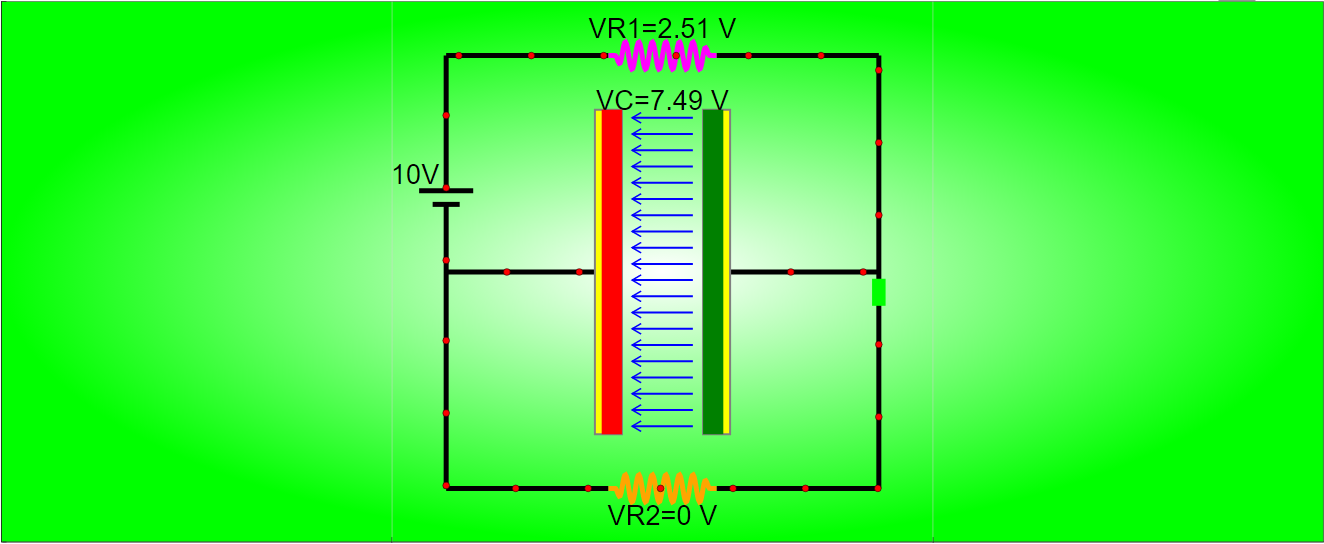
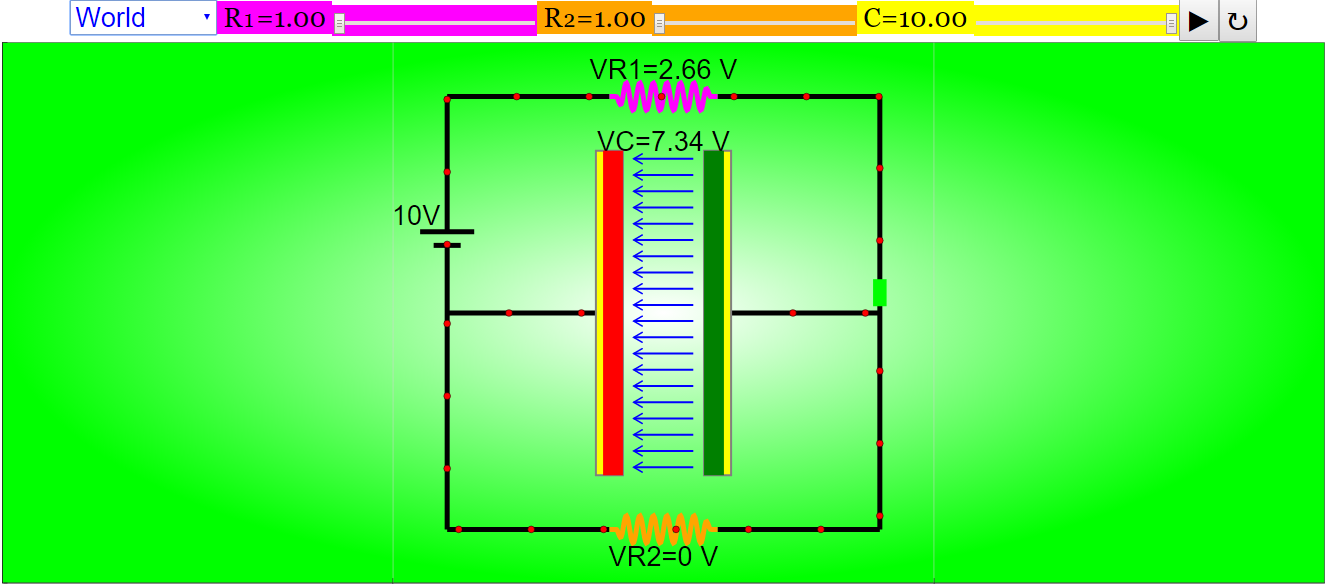
- Interactive Simulation for Capacitor Behavior: The primary focus of this resource is to provide users with an interactive way to understand how capacitors charge and discharge. The applet utilizes visual representations to illustrate the movement of electrons and the resulting change in charge on the capacitor plates.
- "The red dots represent the electrons."
- "You can charge the capacitor or discharge it."
- Visual Representation of Charge: The simulation employs color changes on the capacitor to indicate its charge state. A neutral capacitor is yellow, and as it charges, parts turn red (excess electrons) and green (lack of electrons). This provides an intuitive visual link between electron movement and charge accumulation.
- "The color of the capacitor is yellow (red+green) to represent neutral charge."
- "When electron enter one side of the capacitor, color for part of the region turn into red."
- "Another side of the capacitor lack of electron so it color turn into green."
- User Control and Exploration: The applet offers several interactive elements that allow users to control and observe the charging and discharging processes. These include toggles for different displays (Charge, Discharge, World, Graph, Both), sliders for adjusting resistance and charge, and play/pause/reset buttons for controlling the simulation flow.
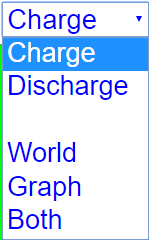
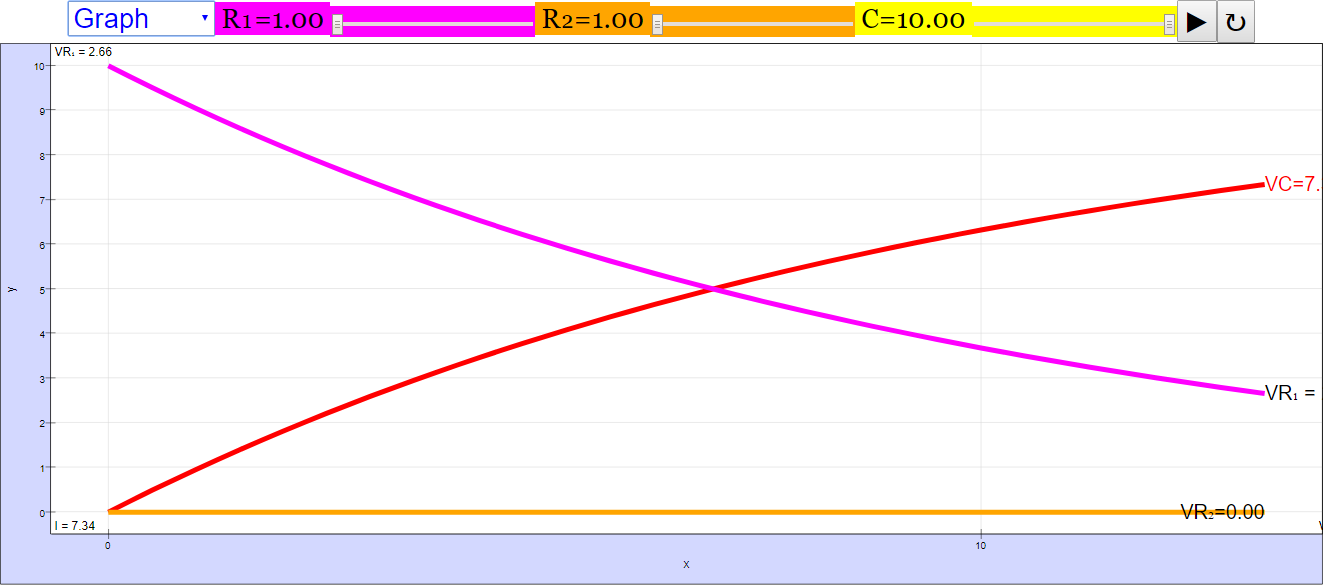
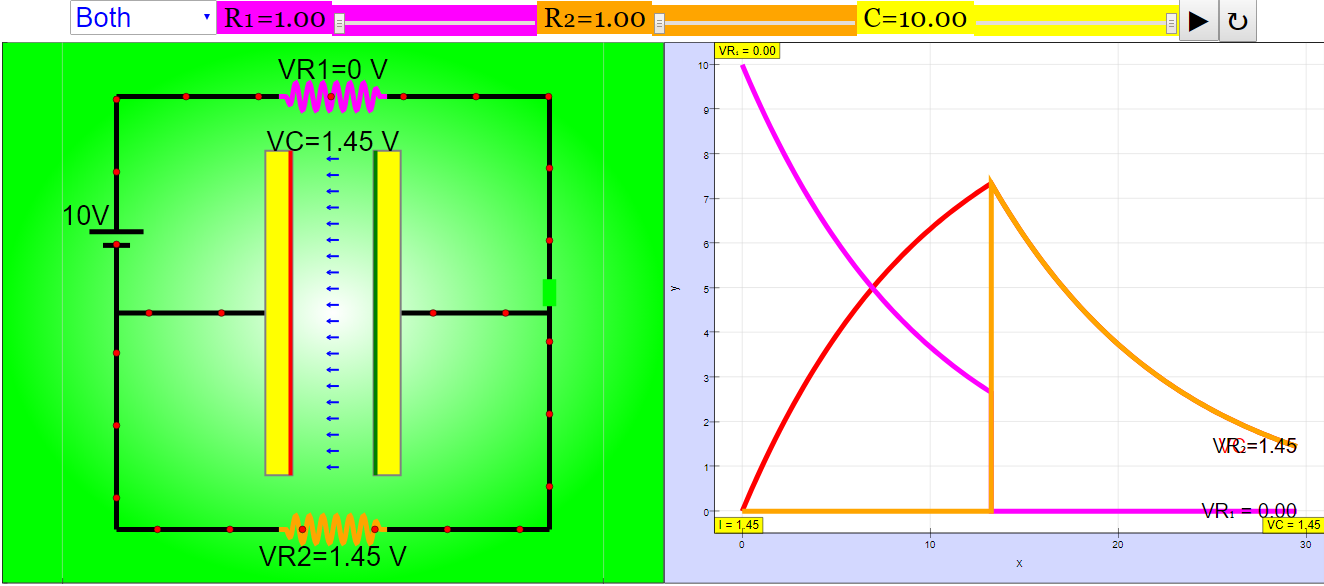
- Display Combo Box: "Toggling the display combo box will toggle the respective displays. (Charge) (Discharge) (World) (Graph) (Both)"
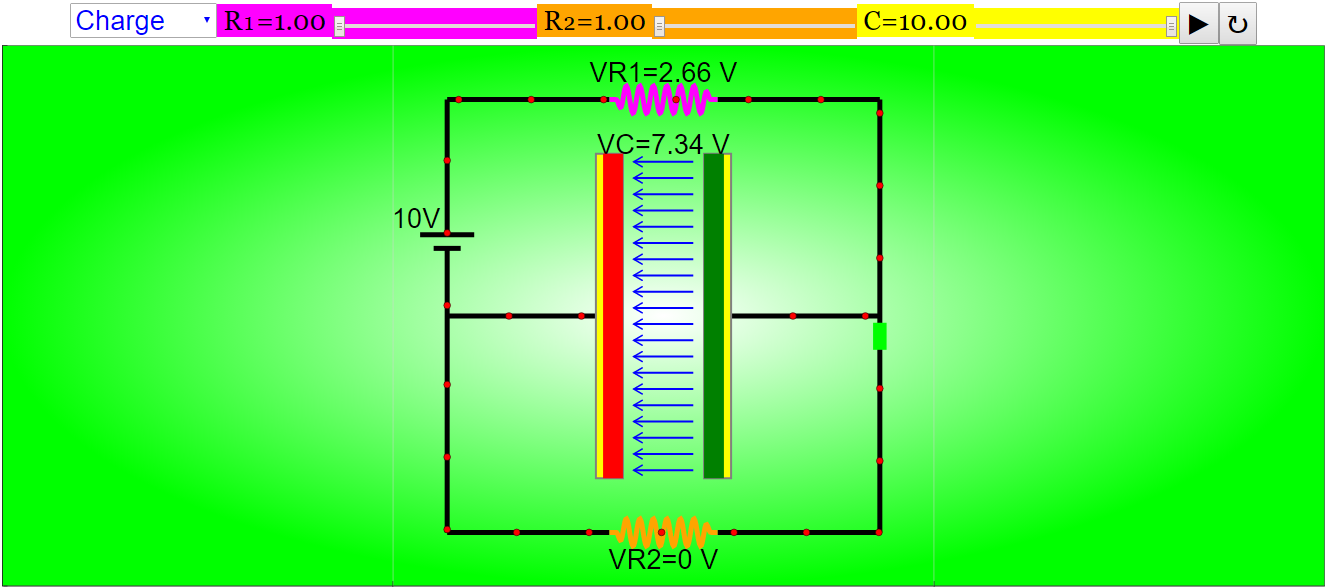
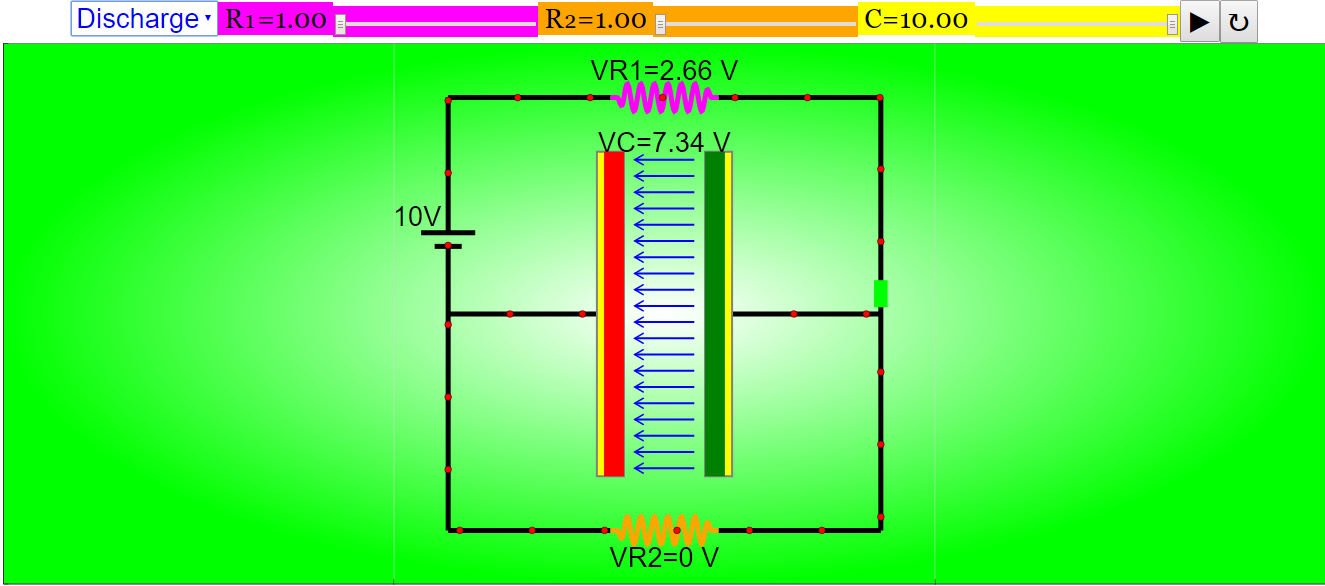
- Sliders: "Toggling the sliders were adjust the respective resistors and charge."
- Play/Pause and Reset Buttons: "Plays/Pauses and resets the simulation respectively."
- Embeddable Resource: The simulation is provided as an HTML5 applet that can be easily embedded into other webpages using an iframe. This facilitates its integration into various online learning environments.
- Embed this model in a webpage: <iframe width="100%" height="100%" src="https://iwant2study.org/lookangejss/05electricitynmagnetism_19practicalelectricity/ejss_model_chargerc/chargerc_Simulation.xhtml " frameborder="0"></iframe>
- Open Educational Resource: The resource is part of the Open Educational Resources / Open Source Physics @ Singapore initiative, suggesting it is freely available for educational purposes. The licensing information at the bottom of the page confirms a Creative Commons Attribution-Share Alike 4.0 Singapore License for the content.
- Credits and Development: The applet is credited to Fu-Kwun Hwang, Fremont Teng, and Loo Kang Wee, indicating the individuals responsible for its creation.
- Sample Learning Goals (Implied): While the specific learning goals are not explicitly detailed in the provided excerpt (marked as "[texthttps://iwant2study.org/lookangejss/05electricitynmagnetism_19practicalelectricity/ejss_model_chargerc/chargerc_Simulation.xhtml " frameborder="0"></iframe>"
- "Toggling the display combo box will toggle the respective displays. (Charge) (Discharge) (World) (Graph) (Both)"
- "Toggling the sliders were adjust the respective resistors and charge."
- "Plays/Pauses and resets the simulation respectively."
Conclusion:
The "Charge or Discharge JavaScript Simulation Applet HTML5" is a valuable open educational resource for teaching and learning about the fundamental principles of capacitor behavior. Its interactive nature, visual representations, and embeddability make it a useful tool for both students and educators in exploring the concepts of charging and discharging in a dynamic and engaging way. The availability of related simulations on the platform further enhances its potential for supporting comprehensive learning in physics and mathematics.
Charge or Discharge JavaScript Simulation Applet HTML5: Study Guide
Key Concepts
- Capacitor: An electrical component that stores energy in an electric field. It typically consists of two conductive plates separated by a dielectric material.
- Charge: A fundamental property of matter that can be either positive (due to a lack of electrons) or negative (due to an excess of electrons).
- Discharge: The process by which a charged capacitor loses its stored charge, often through a connected circuit.
- Electron: A subatomic particle with a negative electric charge. The movement of electrons constitutes electric current.
- Neutral Charge: A state where an object has an equal balance of positive and negative charges.
- Resistor: An electrical component that opposes the flow of electric current. Its value is measured in ohms.
- Simulation: A computer-based model of a real-world system or process, used to understand its behavior.
Quiz
- Describe what the red dots in the simulation represent.
- Explain why the capacitor is initially yellow in color according to the simulation's description.
- What causes a portion of the capacitor's region to turn red in the simulation?
- What does the green color on the capacitor in the simulation indicate?
- What are the two main actions you can perform with the capacitor in the simulation?
- List two adjustable parameters in the simulation that can be controlled using sliders.
- What is the function of the "Play/Pause" button in the simulation?
- What happens when you double-click anywhere in the simulation panel?
- According to the instructions, what does toggling the "Display Combo Box" allow you to do? Provide one example.
- Based on the information provided, who are credited with the creation of this simulation?
Quiz Answer Key
- The red dots in the simulation represent electrons, which are negatively charged subatomic particles. Their movement is essential to understanding charging and discharging processes.
- The capacitor is initially yellow because it is in a neutral charge state. The yellow color is a combination of red and green in the simulation, symbolizing a balance of charges.
- A portion of the capacitor's region turns red when electrons enter that side. This indicates an accumulation of negative charge in that area due to the excess of electrons.
- The green color on the capacitor indicates a lack of electrons on that side. This creates a positive charge imbalance in that region as it has fewer negatively charged particles.
- The two main actions you can perform with the capacitor in the simulation are charging it (adding electrons to one side and removing them from the other) and discharging it (allowing the stored charge to flow out).
- Two adjustable parameters in the simulation that can be controlled using sliders are the resistance of the circuit and the amount of charge involved in the process.
- The "Play/Pause" button in the simulation controls the progression of the charging or discharging process, allowing users to start, stop, and observe the changes over time.
- Double-clicking anywhere in the simulation panel toggles the display between the normal window size and a full-screen view, allowing for more focused observation.
- Toggling the "Display Combo Box" allows you to control which elements of the simulation are visible. For example, you can choose to display the "Charge" state, the "Discharge" state, the "World" view, or a "Graph" of the process.
- Fu-Kwun Hwang, Fremont Teng, and Loo Kang Wee are credited with the creation of this "Charge or Discharge JavaScript Simulation Applet HTML5."
Essay Format Questions
- Discuss how the visual representations in the simulation (color changes, movement of red dots) effectively illustrate the concepts of charging and discharging a capacitor.
- Explain the relationship between the adjustable parameters (resistors, charge) in the simulation and the rate at which a capacitor charges or discharges. How might changing these parameters affect the visual representation in the simulation?
- Considering the "Sample Learning Goals" (which are not provided in the text but implied), describe how this simulation could be used as an effective tool for teaching practical electricity concepts related to capacitors in a classroom setting.
- Based on the other listed simulations on the webpage, discuss the broader value of interactive JavaScript simulations in physics education. What advantages do they offer over traditional teaching methods for topics like electricity and magnetism?
- Analyze the design and functionality of the "Charge or Discharge JavaScript Simulation Applet HTML5" based on the provided information. What aspects make it user-friendly and effective for learning about capacitor behavior?
Glossary of Key Terms
- Applet: A small application, often written in Java or JavaScript, designed to be run within another application (like a web browser).
- HTML5: The latest evolution of the standard markup language for creating web pages and web applications, enabling interactive elements and multimedia without the need for plugins.
- JavaScript: A lightweight, interpreted, or just-in-time compiled programming language with first-class functions, primarily used to make web pages interactive.
- Open Educational Resources (OER): Teaching, learning, and research materials that are freely available for everyone to use, adapt, and share.
- Open Source Physics (OSP): A project focused on creating and disseminating open-source computational tools and resources for physics education.
Sample Learning Goals
[text]
For Teachers
Charge or Discharge JavaScript Simulation Applet HTML5
Instructions
Display Combo Box
Sliders

Toggling Full Screen
Play/Pause and Reset Buttons

Research
[text]
Video
[text]
Version:
Other Resources
[text]
Frequently Asked Questions: Charge and Discharge Simulation Applet
- What does the Charge or Discharge JavaScript Simulation Applet demonstrate? This applet visually demonstrates the process of charging and discharging a capacitor in an electric circuit. It uses red dots to represent electrons and changes the color of the capacitor to indicate its charge state. Yellow signifies a neutral charge, red indicates an excess of electrons (negative charge), and green indicates a lack of electrons (positive charge). Users can observe how electrons accumulate on one side of the capacitor during charging and how they flow out during discharging.
- How can I interact with the simulation? The applet offers several interactive elements. You can toggle the display of different aspects of the simulation using a combo box, including a visual representation of the charge/discharge process, a graphical representation of the charge or current over time, and a combined view. Sliders allow you to adjust the values of resistors and the initial charge in the circuit, influencing the rate of charging and discharging. There are also play/pause and reset buttons to control the simulation's execution and return it to its initial state. Double-clicking within the panel toggles full-screen mode for better visibility.
- What are the learning objectives of this simulation? This simulation aims to help users understand the fundamental concepts of charging and discharging a capacitor. It allows learners to visualize the movement of electrons, observe how the capacitor's charge changes over time, and explore the effect of circuit components like resistors on the charging and discharging rates. The applet can be used to reinforce theoretical knowledge of basic electricity and practical circuit behavior.
- Who created this simulation and where can I find more resources? This JavaScript Simulation Applet was created by Fu-Kwun Hwang, Fremont Teng, and Loo Kang Wee as part of the Open Educational Resources / Open Source Physics @ Singapore project. The embed code provided allows you to integrate this model into other webpages. The website also features a wide array of other interactive physics and mathematics simulations, covering topics from mechanics and waves to electromagnetism and even mathematical concepts like complex numbers and differential equations. These resources can be found under the "Interactive Resources" section of the website.
- Is this resource free to use? Yes, this simulation applet is provided as an Open Educational Resource under the Creative Commons Attribution-Share Alike 4.0 Singapore License, meaning it is free to use and share for non-commercial purposes, as long as attribution is given and any derivative works are shared under a similar license. However, for commercial use of the underlying EasyJavaScriptSimulations Library, separate licensing terms apply, and you would need to contact This email address is being protected from spambots. You need JavaScript enabled to view it. directly.
- Can this simulation be used for teaching purposes? Absolutely. The "For Teachers" section explicitly indicates that this is a resource intended for educational use. The interactive nature of the applet, the ability to adjust parameters, and the visual representation of abstract concepts make it a valuable tool for demonstrating and explaining the principles of capacitor charging and discharging in a practical electricity context. The listed "Sample Learning Goals" further support its pedagogical value.
- What other topics are covered by the Open Educational Resources / Open Source Physics @ Singapore project? This project offers a vast collection of interactive simulations spanning various topics in physics and mathematics. Examples listed alongside the Charge/Discharge applet include simulations on direct and alternating current, complex number calculators, RLC circuits, transformers, wave phenomena, optics, thermal physics, quantum mechanics, and even mathematical concepts like fractals, differential equations, and calculus. There are also resources related to mechanics, fluids, magnetism, and various practical applications of physics.
- Are there other resources related to electricity and magnetism available on this platform? Yes, within the "05 Electricity and Magnetism" and "06 Practical Electricity" sections, and more broadly across the entire collection, there are numerous other simulations related to electricity and magnetism. These include topics like AC/DC circuits, magnetic fields (from bar magnets, loops, and dipoles), Faraday's law, electromagnetic waves, electric circuits (series and parallel), potential difference, variable resistors, and more specialized topics like the Millikan Oil Drop Experiment and velocity selectors. The platform offers a comprehensive set of interactive tools for learning about various aspects of electricity and magnetism.